
FAQs
Find quick answers about setup, groups, events, time zones, reminders, privacy, and subscriptions.
If something’s missing, contact us — we’re adding more answers regularly.
Getting Started & Onboarding
What devices and operating systems does Gesynced support?
All Android devices 7.0 (Nougat) and up. All Apple iOS/iPadOS devices from 15.1 or up.
How do I download and install Gesynced?
Once Gesynced is available, you’ll download it from the App Store (iOS) or Google Play (Android). We’ll also provide direct links on our Download page.
How do I create a new Gesynced account?
You automatically create the account when you start the app on your phone. You will be asked to select the language you want to use the app in, then enter your email address. You will receive a one-time password via email. Once your email address is verified, you will carry on setting up your profile. You can use this account across multiple devices.
How do I log in for the first time?
You are automatically logged in on your device when you create an account after installing the app.
How do I reset my password?
There is no password. You get a one-time password emailed to you whenever you need to log in.
Can I sign up using email, phone number, or social login?
We are currently only supporting email login.
How do I set up my profile and name?
When you initially create the account, you can set your profile name and picture. You can change this at any time by clicking on your current profile picture (or placeholder) at the bottom right of the app to enter the profile menu. At the bottom of the menu, select "Account". Here you can change your profile name, date of birth, privacy settings and profile picture.
How do I change my profile picture?
You can change your profile picture at any time by clicking on your current profile picture (or placeholder) at the bottom right of the app to enter the profile menu. At the bottom of the menu, select "Account". Tap on the profile picture to change it. You can either take a picture or upload a picture from your device.
How do I switch the app language?
Click on your current profile picture (or placeholder) at the bottom right of the app to enter the profile menu. Here you see the current language set and, by clicking on the language, get the option to change this. The Gesynced calendar app is available in English, German, French and Spanish.
I didn't receive my one-time password - what should I do?
When you sign up for an account, you will receive a one-time password via email. If you did not receive it, please check your spam folder and verify your email address. You can go back to correct your e-mail address if it is incorrect. If you still did not receive the one-time password, please contact us and we will help you.
Creating and Managing Groups
What is a family or household group in Gesynced?
A group defines who shares what inside Gesynced. It keeps your life organised by separating the people who should automatically see, receive, or manage certain events.
You can create different groups for different parts of your life, and each group has its own members, settings, and visibility rules. This way, everyone gets the information they need - nothing more, nothing less.
- Family group: Add parents and kids so everyone sees school events, family trips, birthdays, and shared routines.
- Household group: Perfect for roommates. Shared cleaning schedules, bill-due dates, or grocery-related appointments stay visible only to the people living together.
- Separated co-parents: Two homes, two timetables - one shared group. Both parents (and optionally additional caregivers) can stay in sync with childcare schedules, pickups, or doctors' appointments.
- Work or side-project team: Create a group for your team to coordinate deadlines, meetings, or shift plans without mixing your personal life.
- Travel group: Planning a weekend trip? Add only the people who are going. Everyone sees the shared itinerary across time zones without cluttering anyone else's calendar.
- Couples: A simple two-person group to keep track of shared events like dinners, reminders, or appointments.
- Extended family: For grandparents, siblings, or relatives who only need visibility for birthdays, gatherings, or visits.
How do I join an existing family group?
You can only join a group through an invitation from one of its administrators. After they add you, you will either be placed into the group automatically (if your profile settings allow auto-join) or you will receive a notification asking you to confirm the invitation before you are added.
Can I be part of multiple groups?
Yes, you can be a member of an unlimited number of groups.
Can I switch between groups?
Groups do not need switching. You can toggle which groups' events you want to see - either everything together or only one group at a time.
How do I create a new group?
To create a new group, pull up the menu from the bottom where it says "All calendars". All new users automatically have one personal calendar. To create a new group calendar, click on the line where it says "1 Peronal" with the > arrow. At the top of this page you will see an "Add" button. Click on this button to create a new group or personal calendar.
How do I invite members to my group?
To invite members to a group, click on the group you want to invite members to. In the middle of that page you will see "Group members", with round avatars image to indicate the current members. Click on the line where it says "Group members" with the > arrow. At the top right of the page you will see the "Add" button. Click on this button to invite members to the group. You can invite members by searching for their email address. You can also invite members by their profile name. If the member is found and has set their permission to auto-join groups, the member will automatically be added to the group when you invite them. Otherwise, they will receive an email with a notification to join the group. If the new member has not yet signed up to gesynced, the will receive an e-mail, inviting them to sign up. They will then be able to join the group by clicking on the invitation.
How do I remove a member from my group?
To remove a member from a group, click on the group you want to remove the member from. In the middle of that page you will see "Group members", with round avatars image to indicate the current members. Click on the line where it says "Group members" with the > arrow. Click and hold the avatar of the member you want to remove. Slide the avatar to the left to see the "Delete" button. Click on this button to remove the member from the group.
How do I manage roles and permissions for members?
To manage roles and permissions for members, click on the group you want to manage the roles and permissions for. In the middle of that page you will see "Group members", with round avatars image to indicate the current members. Click on the line where it says "Group members" with the > arrow. For each member, you will see the toggle for "Admin access". If you toggle this to on, the member will have admin access to the group. If you toggle this to off, the member will not have admin access to the group.
How do I add child profiles?
To add a child profile, click on the group you want to add the child profile to. In the middle of that page you will see "Group members", with round avatars image to indicate the current members. Click on the line where it says "Group members" with the > arrow. At the top right of the page you will see the "Add" button. Click on this button to add a child profile to the group. You can add a child profile by searching for their email address. You can also add a child profile by their profile name. If the child profile is found and has set their permission to auto-join groups, the child profile will automatically be added to the group when you add them. Otherwise, they will receive an email with a notification to join the group. If the new child profile has not yet signed up to gesynced, the will receive an e-mail, inviting them to sign up. They will then be able to join the group by clicking on the invitation.
How do parental controls work for child accounts?
There are no parental controls in Gesynced. Parents or guardians are responsible for managing their child's device, account, and app usage. Each minor needs their own email address and profile, and you can adjust their privacy settings to limit who can see them or invite them to groups and events.
Calendar Basics
How do I create a new event?
Either press and hold on the calendar or tap the small plus icon on the top right of the daily calendar.
How do I edit or delete an event?
Either press and hold on the event to see a preview with edit and delete actions, or click on the event to edit it and scroll to the bottom to delete.
How do I change event colors?
Click on the event to edit it. Here you will find the color swatch.
How do I add a location to an event?
To add a location to an event, use the "Notes" section at the bottom of the event. As a link to pinned location on on the map. When you click and hold on an event in the daily view, you will see a preview of the event with a clickable link to the location.
How do I create an all-day event?
When creating or editing an event, you can toggle between all-day events or events with a set start and end date.
How do I duplicate or copy an event?
Gesynced does not support direct event duplication. However, every event can be set to repeat, which usually achieves the same result for recurring or similar appointments.
How do I assign an event to specific members?
To assign an event to specific members, click on the event you want to assign to specific members. Scroll down to where it says "Share". Click on the line where it says "Share" with the > arrow. At the top right of the page you will see the "Add" button. Click on this button to assign the event to specific members. You can assign the event to specific members by searching for their email address. You can also assign the event to specific members by their profile name. If the member is found and has set their permission to auto-join groups, the member will automatically be assigned to the event when you assign it. Otherwise, they will receive an email with a notification to join the event. If the new member has not yet signed up to gesynced, the will receive an e-mail, inviting them to sign up. They will then be able to join the event by clicking on the invitation. You can set whether the member will be allowed to edit the event or not.
How do I add a location to an event?
To add a location to an event, use the "Notes" section at the bottom of the event. As a link to pinned location on on the map. When you click and hold on an event in the daily view, you will see a preview of the event with a clickable link to the location.
How do I add notes or descriptions to an event?
To add notes or descriptions to an event, click on the event you want to add notes or descriptions to. Scroll down to where it says "Notes" and enter your notes or descriptions. This can be anything, from a list, to a link of a location on the map, contact details, or any other information you want to add.
Recurring Events and Advanced Scheduling
How do I schedule events across different time zones?
Every event has its own time zone selector right below the date. When you choose a time zone, the event is created in that zone. Gesynced then automatically converts it to the correct local time on each person's phone, so the start and end times always display correctly - no manual adjustments needed.
How does Gesynced handle time zone changes when traveling?
Gesynced automatically adjusts all your events to the local time of your phone. The event itself keeps its original time zone, but your view updates the moment you enter a new location. This means flights, meetings, and appointments always display at the correct local time - no editing required.
How do I create recurring events?
- Tap or click on the event you want to repeat.
- Scroll down until you see "Recurrence".
- Tap the line that says "Recurrence" (the one with the > arrow).
- A new page will open where you can choose how often the event should repeat.
- Every day
- Every week
- Every month
- Every year
You can decide if the event should:
- Repeat forever
- Stop after a certain number of times
- Stop on a specific date
How do I set custom recurrence rules (every two weeks, last Friday of the month, etc.)?
To set custom recurrence rules, click on the event you want to set custom recurrence rules for.
Scroll down to where it says "Recurrence". Click on the line where it says "Recurrence" with the > arrow.
On the next page you can set the recurrence rules. For example, you can set the recurrence rules to every two weeks by selecting 2 in the number dial, "Weeks" in the recurrence interval, and "Friday" in the recurrence day.
You can also set the recurrence rules to last Friday of the month by selecting "Last" in the slider, "Week" in the recurrence interval, and "Friday" in the recurrence day.
Click "Done" at the top right of the page to save the recurrence rules. Click "Cancel" at the top left of the page to cancel any changes.
How do I stop recurring events?
- Tap or click on the event on the day where you want the repeating events to stop.
- Scroll down to the bottom of the event.
- Tap Delete.
- This event only (only the event on that day)
- This and all future events
- The entire series (all repeating events)
How do exceptions to recurring events work?
To delete a recurrence for a specific day, click on the event on the day where you want to stop the recurring events. Scroll down to the bottom of the event where it says "Delete" and click on it to stop the recurring event. You will be prompted to confirm if you want to delete the entire series, this event only for a certain day, or for this day and all future recurrences. Select "This event only" to delete the recurrence for this specific day.
Viewing and Navigating the Calendar
How do I search for events?
This feature is not available yet, but it is planned for an upcoming release.
How do I view event details quickly?
Press and hold the event to display a summary of the event.
How do I switch between calender and timeline view?
You can toggle between the calendar and timeline view by clicking on the double bars on the top right of the daily calendar sheet, or the clock symbol 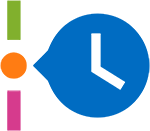 on the top right of the timeline view.
How do I toggle which calendars are visible?
You can toggle which calendars are visible by pulling up the menu, where is says "All Calendars". You will see a round avatar image for each calendar, as well as one for "All", which is selected by default. By clicking on the individual calendar, you can select to only show events of this calendar. By selecting "All", you will see all events for all calendars again.
How do color codes work on the calendar?
You can change the color of an event by clicking on the event to edit it. Here you will find the color swatch. You can choose any color from the color palette. Click "Done" at the top right of the event to save the color. Click "Cancel" at the top left of the event to cancel any changes.
Reminders
How do reminders work in Gesynced?
Reminders are set when creating an event or by clicking on the event to edit it. Here you will find the "Reminders" settings. You can select up to 11 reminders for an event if you are a plus member, and one reminder for a free member. The reminder will be set for the event start time.
How do I set reminders for an event?
- Tap or click on the event you want a reminder for.
- Scroll down until you see "Reminders".
- Tap the line that says "Reminders" (the one with the > arrow).
- A small menu will open at the bottom of the screen.
- Choose when you want to be reminded.
- Free members can set one reminder per event.
- Plus members can set as many reminders as they like.
- Tap "Done" in the top right corner to save your reminder.
- You can also swipe the menu down, and the reminder will be saved automatically.
How do I customize reminder times?
You can customize the reminder when creating the event or by clicking on the event to edit it. Here you will find the "Reminders" settings. You can select up to 11 reminders for an event, from the time of the event to 1 week before the event start time.
How do I choose who receives a reminder?
If the event is a group event, all members of the group are notified at the same time. If the event is a personal event which has been shared with others, all members of the shared event are notified at the same time.
How do I turn off or mute reminders?
You can turn off reminders for individual days by clicking on the "Reminders" settings in the event for that day. By selecting a reminder which has been set, you deselect the reminder. When you save the event, you will be asked to confirm if the change is only for this event, or for this and future events. By selecting "This event only" the reminders will be turned off for this event only. By selecting "This and future events" the reminders will be turned off for this event and all future events.
Why am I not receiving reminder?
If you are not receiving reminders, check if the reminders are set for the event by editing the "Reminders" in the event. You can always see whether or not reminders are set for an event if a small bell icon is visible in the top right corner of the event.
Syncing, Backups and Offline Mode
Does Gesynced work offline?
Yes. All data is stored locally on your device, so you can create and edit events without an internet connection. As soon as your phone goes online again, everything syncs automatically with the server.
How does the app sync when I am online again?
You don’t need to do anything. Gesynced automatically checks for a connection and syncs as soon as you’re online again. If needed, you can also trigger a manual sync by shaking your phone.
Can I sync Gesynced with Google Calendar?
This feature is currently not available but is due to roll out in a future release.
Can I sync Gesynced with Apple Calendar?
This feature is currently not available but is due to roll out in a future release.
How often does Gesynced sync your data with the server?
The data is synced every 5 minutes, but you can also trigger a manual sync by shaking your phone.
Account Settings and Personalization
How do I change my display name?
You can change your display name by clicking on your avatar image or placeholder at the bottom right of the app. At the bottom of the menu you will find the "Account" settings. Here you can change your display name. Click "Done" at the top right of the page to save the display name. Click "Cancel" at the top left of the page to cancel any changes.
How do I update my email or phone number?
Your email address is your username for the app. All of your data is linked to your email address. Once your account has been created with this email address, it cannot be changed. You can change your email address by deleting your account and creating a new one with a new email address.
How do I change my preferred language?
You can change the language of the app by clicking on your avatar image or placeholder at the bottom right of the app. In the menu you will find "Language" with the currently selected language. By clicking on the language, you will see a list of available languages. Select the language you want to use. You will be asked to confirm the change. Once confirmed, the app will reload and you will see the new language.
How do I change the first day of the week?
The app was developed for an international audience. The week starts on Monday by default. This cannot be changed.
How do I adjust app theme or color mode?
You can change the theme of the app by clicking on your avatar image or placeholder at the bottom right of the app. In the menu you will find "Appearance" with the currently selected theme, or "System" to use the system default. By clicking on the theme, you will see a list of available themes: System, Dark or Light. Select the theme you want to use. The app will automatically adjust after selection.
How do I manage privacy settings?
You can manage your privacy settings by clicking on your avatar image or placeholder at the bottom right of the app. Select "Account" in the menu. Here you will find the "Privacy" settings. You can select to be found in the public directory (via profile name or email address) and whether or not you would like to automatically join groups on invitation. You can toggle to turn off the auto-join function as well as your public profile visibility.
Payments, Subscription and Plans
What features are included in the free plan?
The free plan includes the essentials to get you started:
- 1 private calendar: Keep your personal schedule organised.
- 1 group calendar: Share events with family, friends, or a small team.
- Basic reminders: Get simple notifications for important moments.
- Basic support: Assistance when you need it.
- Ad-supported: Use Gesynced at no cost.
What does the premium plan include?
The premium plan unlocks everything Gesynced has to offer:
- Unlimited private calendars: Organise every part of your life without limits.
- Unlimited group calendars: Perfect for larger families, teams, and power users.
- Unlimited reminders: Set as many notifications as you need.
- Priority support: Get faster help whenever you need it.
- Ad-free experience: Enjoy Gesynced without interruptions.
How do I upgrade my subscription?
You can upgrade your subscription by clicking on your avatar image or placeholder at the bottom right of the app. In the menu you will find your current subscription. By clicking on upgrade, you will see the available subscription. To upgrade, select "Upgrad to Plus now!" and you will be guided through the payment process.
Safety, Privacy and Child Protection
Is Gesynced GDPR compliant?
Yes. Gesynced is designed to meet the requirements of the GDPR. We collect only the data needed for the app to function, store information securely, and never sell personal data. Users can access, edit, or delete their information at any time, and all data is processed within the EU or with GDPR-compliant providers. If you delete your account, your personal data is permanently removed from our systems.
Can minors use Gesynced?
Yes. Minors can use Gesynced as long as they have their own unique email address. Create an account for them with that email, log them into the app, and they can use all standard features. You can also adjust their privacy settings so their profile stays hidden when others send event or group invitations. De-select the auto-join function so that they have to accept group invitations manually.
How do parental controls work?
Gesynced does not include built-in parental control features. Parents or guardians are responsible for managing their child's device, account, and app usage. Each minor needs their own email address and profile, and you can adjust their privacy settings to limit who can see them or invite them to groups and events.
How do I permanently delete my data?
Your data is deleted when you delete your account.
How do I delete my account?
Open your user settings and scroll to the bottom of the page. There, you will find options to log out or delete your account.
How does Gesynced protect user data?
Gesynced is designed to meet the requirements of the GDPR. We collect only the data needed for the app to function, store information securely, and never sell personal data. Users can access, edit, or delete their information at any time, and all data is processed within the EU or with GDPR-compliant providers. If you delete your account, your personal data is permanently removed from our systems.
Who can see my family's events?
Private events are only visible to the owner of the event, or those members which you have explicitly shared the event with. Group events are visible to all members of the group. No one outside a group can see the events of a group.